
How to Check Subscribers on YouTube: A Step-by-Step Guide (2025 Update)
As a YouTube creator, your subscriber count is more than just a number—it’s a vital sign of your channel’s health and growth. Whether you’re tracking your progress toward a monetization milestone or simply curious about your audience, knowing how to check subscribers on YouTube is a fundamental skill. This metric directly influences your channel’s reach, credibility, and potential for success on the platform. This comprehensive guide will walk you through every method, from a basic check to a deep dive into your analytics, ensuring you can confidently monitor your community.
Table of Contents
What Are YouTube Subscribers and Why Do They Matter?
Before we dive into the steps, let’s clarify what a YouTube subscriber actually is. A subscriber is a user who has chosen to “follow” your channel. This action is like subscribing to a magazine; they’re expressing interest in your content and want to see more of it.
Here’s why they are so crucial:
- Built-in Audience: Your subscribers are your core audience. YouTube is more likely to notify them of your new uploads and feature your videos in their “Home” and “Subscriptions” feeds.
- Algorithm Boost: Channels with growing subscriber counts are often favored by the YouTube algorithm, which can lead to increased organic reach through recommendations.
- Community and Engagement: Subscribers are your most engaged viewers. They are more likely to like, comment, and share your videos, creating a vibrant community around your content.
- Monetization and Partnerships: Reaching specific subscriber thresholds (like 500 or 1,000) is a key requirement for the YouTube Partner Program and is often a benchmark for brand deals and collaborations.
How to Check Subscribers on YouTube (Step-by-Step Guide)
The most accurate and detailed way to view your subscriber data is through YouTube Studio. Here’s a simple, step-by-step process for both desktop and mobile.
On Desktop (Web Browser)
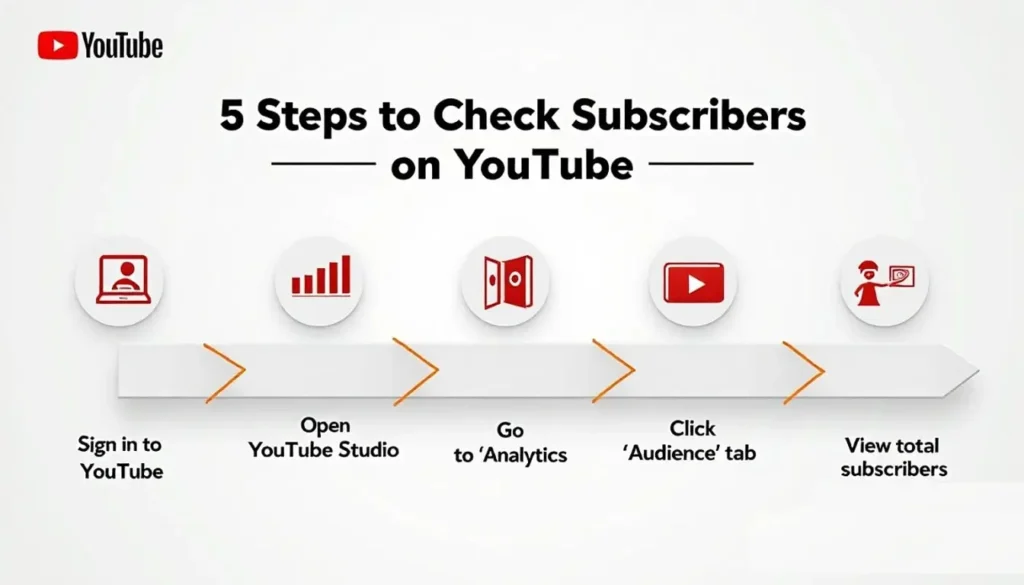
Step 1: Sign in to Your YouTube Account
Navigate to YouTube.com and ensure you are signed into the Google account associated with your channel.
Step 2: Open YouTube Studio
Click on your profile picture in the top-right corner of the screen. From the dropdown menu, select YouTube Studio. This is your channel’s command center.
Step 3: Navigate to the “Dashboard”
Once in YouTube Studio, you’ll land on the Dashboard. Here, you can see a high-level snapshot of your channel’s performance.
Step 4: View Your Subscriber Count
On the Dashboard, look for the Channel analytics card. Your current total subscriber count will be prominently displayed. For a more detailed view, click on the “See analytics” button.
Step 5: Dive Deeper into the “Audience” Tab
In the left-hand menu, click on “Analytics.” Then, select the “Audience” tab. This section provides a goldmine of information, including:
- A graph showing your subscriber gains and losses over time.
- The net change in subscribers for any selected date range.
- Data on where your new subscribers are coming from (which videos or external sources).
On Mobile (YouTube Studio App)
For creators on the go, the YouTube Studio app is indispensable.
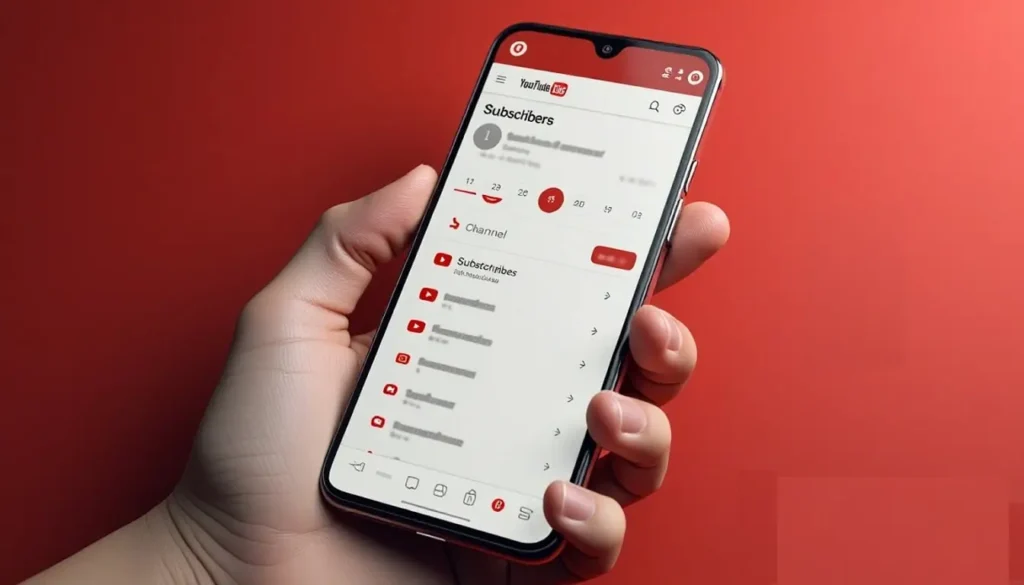
- Download and open the YouTube Studio app on your iOS or Android device.
- Tap on the “Analytics” tab at the bottom of the screen.
- At the top, you’ll see your core metrics. Swipe left on the metrics bar until you see “Subscribers.” This shows your total count.
- Tap on the “See more” button to access the detailed Audience tab, complete with the subscriber growth graph, just like on desktop.
How to See Your Subscribers on YouTube Individually
Many creators want to know who is behind the numbers. How to see your subscribers on YouTube individually is a common question, but there are some important limitations.
- In YouTube Studio, go to the “Comments” section in the left menu.
- On the Comments page, look for the “Subscribers” tab near the top. Click on it.
- You will now see a list of subscribers who have chosen to make their subscriptions public.
Important Privacy Note: You will not see every single subscriber in this list. Users have the privacy setting to keep their subscriptions hidden. If this setting is enabled, they will subscribe to your channel and receive notifications, but they will not appear on your public subscribers list. According to the YouTube Help Center, this is to protect user privacy.
Alternative Ways to Track Subscribers
Beyond YouTube Studio, several third-party tools offer powerful analytics and tracking.
- Social Blade: This is a popular free tool that provides estimates and tracking for social media channels. You can see daily subscriber gains, projected growth, and channel rankings. It’s great for a quick, public-facing look at any channel’s growth trends. Check it out at Social Blade.
- vidIQ & TubeBuddy: These are browser extensions and apps built specifically for YouTube creators. They integrate directly into your YouTube Studio, offering advanced analytics, keyword research, and competitor analysis to help you understand what drives subscriber growth.
Using these tools in conjunction with YouTube’s native analytics gives you a 360-degree view of your channel’s performance.
How to See My Subscribers on YouTube Using the Mobile App
If you’re using the main YouTube mobile app (not YouTube Studio) and wondering how to see my subscribers on YouTube, the process is slightly different but just as straightforward.
- Open the YouTube app and tap on your profile picture.
- Select “Your channel” from the menu.
- At the top of your channel page, directly below your channel name, you will see your public-facing subscriber count (e.g., “1.5K subscribers”).
Note: The main YouTube app shows your total count publicly but does not provide the detailed analytics or the list of individual subscribers. For that, you must use the YouTube Studio app as described earlier.
Tips to Increase Your YouTube Subscribers
Tracking your numbers is one thing; growing them is another. Here are some proven tips to boost your subscriber count organically:
- Create Consistent, High-Quality Content: Value is king. Consistently publish videos that solve a problem, entertain, or educate your target audience.
- Craft Compelling Thumbnails and Titles: This is your first impression. Make it count. Your thumbnail and title are the primary reasons someone clicks on your video.
- Utilize End Screens and Cards: At the end of your videos, use end screens to promote another relevant video or, most importantly, a prompt to subscribe to your channel.
- Create a Channel Trailer: For new visitors, a short, engaging channel trailer that explains what your channel is about can significantly increase subscription rates.
- Engage with Your Community: Respond to comments, ask questions in your videos, and create content based on audience suggestions. People subscribe to people, not just content.
- Optimize for Search (SEO): Use relevant keywords in your titles, descriptions, and tags to help your videos be discovered by new viewers. For a masterclass on this, the HubSpot Guide on YouTube Marketing is an excellent resource.
Conclusion
Understanding how to check subscribers on YouTube is the first step toward strategically growing your channel. By regularly monitoring your subscriber count in YouTube Studio, analyzing your audience tab for growth patterns, and using the list of public subscribers to engage with your community, you can turn analytics into action. Remember, subscriber growth is a marathon, not a sprint. Stay consistent, provide value, and use the data at your fingertips to refine your strategy. Now that you know how to track your progress, go forth and build your YouTube community!
FAQs Section
Q1: How often does YouTube update the subscriber count?
YouTube updates subscriber counts in near real-time, but there can be a slight delay of a few minutes. For public-facing counts on your channel page, the number is often rounded (e.g., 1,234 may show as 1.2K). The most precise, real-time number is always found in YouTube Studio.
Q2: Why can’t I see all my subscribers in the list?
You cannot see all your subscribers because of YouTube’s privacy settings. Users have the option to keep their subscriptions private. When they enable this setting, they will still be subscribed to your channel, but their identity will not be visible in your public subscribers list.
Q3: How can I hide my subscriber count on my channel?
Yes, you can hide your subscriber count. In YouTube Studio, go to Settings > Channel > Advanced settings. Under “Subscriber count,” you can uncheck the box that says “Display the number of people subscribed to my channel.” This will remove the count from your public-facing channel page.